
DentalQC › Docs › Profile, workspace, members and devices
Profile, workspace, members and devices
Open it by clicking the workspace name / your name at the top right of the top bar.
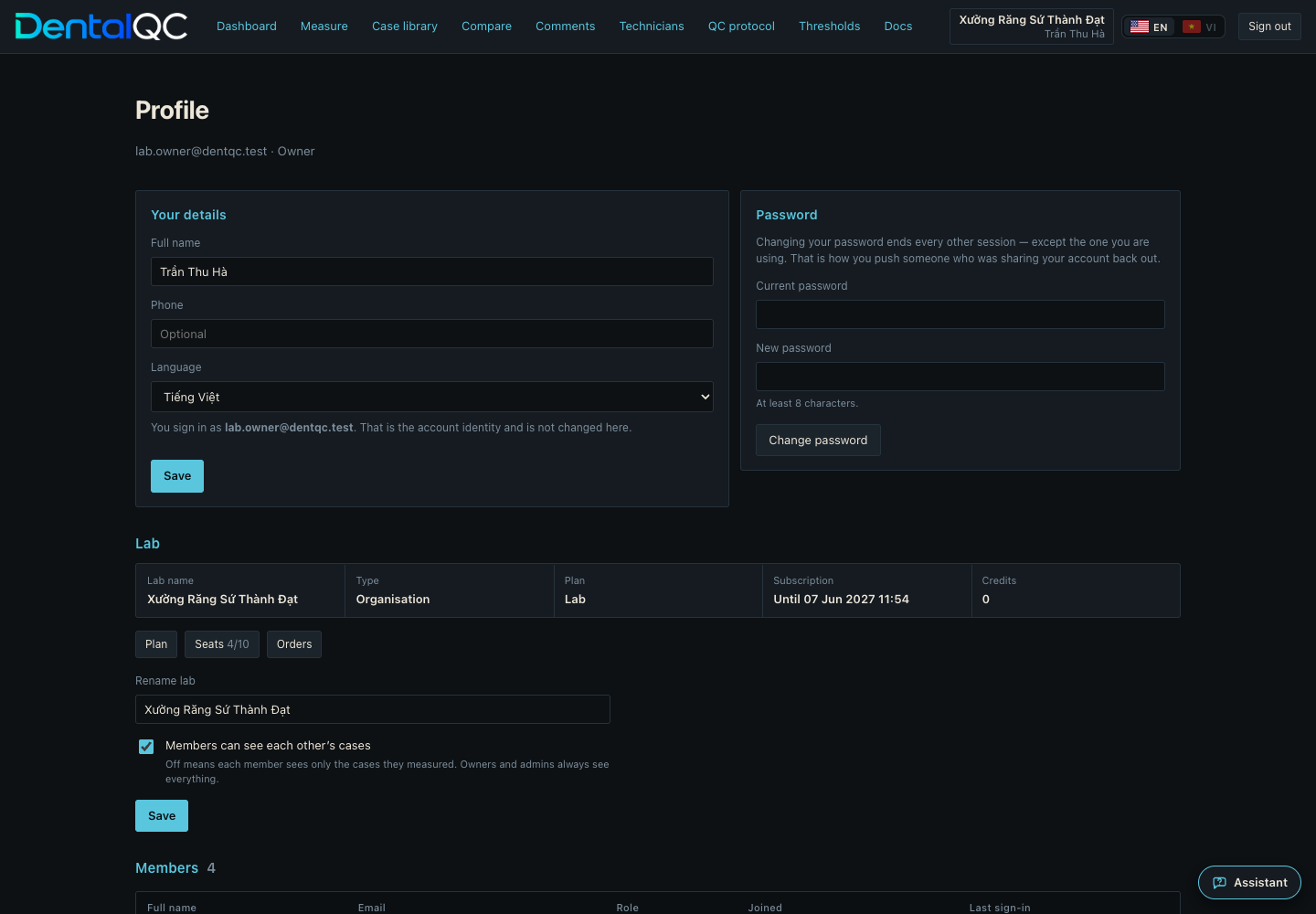
Your details
- Full name: the name printed on reports. Phone (optional). The account's default Language. Click Save.
- The sign-in email is the account's identity and cannot be changed here.
Password
- Enter the Current password and the New password (at least 8 characters), then click Change password.
- Changing the password ends every other session except the one you are using — the way to throw out someone sharing your account. The message says how many sessions were ended.
- Common errors: current password is wrong; new password is the same as the old one.
Lab (workspace)
- The Lab block: Lab name, Type (Personal / Organisation), Plan, Subscription (until when), Credits.
- Owners/admins: the Rename lab box; organisation workspaces also have the Members can see each other's cases checkbox (off means each member only sees their own cases; owners and admins always see everything). Click Save.
- The workspace name always shows in the top bar so cases are not measured into the wrong workspace.
Members and devices
- Members: name, email, role (Owner · Admin · Member · Viewer), joined date, last sign-in. Inviting people and changing roles come in a later version.
- Signed-in devices: 8-character ID, browser · operating system, user, sign-in count, last seen. Only devices signed in during the last 30 days count.
- The device table is a count to show how many seats the workspace needs, not a lock — nobody is blocked by it.