
DentalQC › Docs › Batch measuring
Batch measuring
Measures up to 6 cases per batch, one after another. Each case lands in the library just like a single run, and the results appear as a table with one row per case.
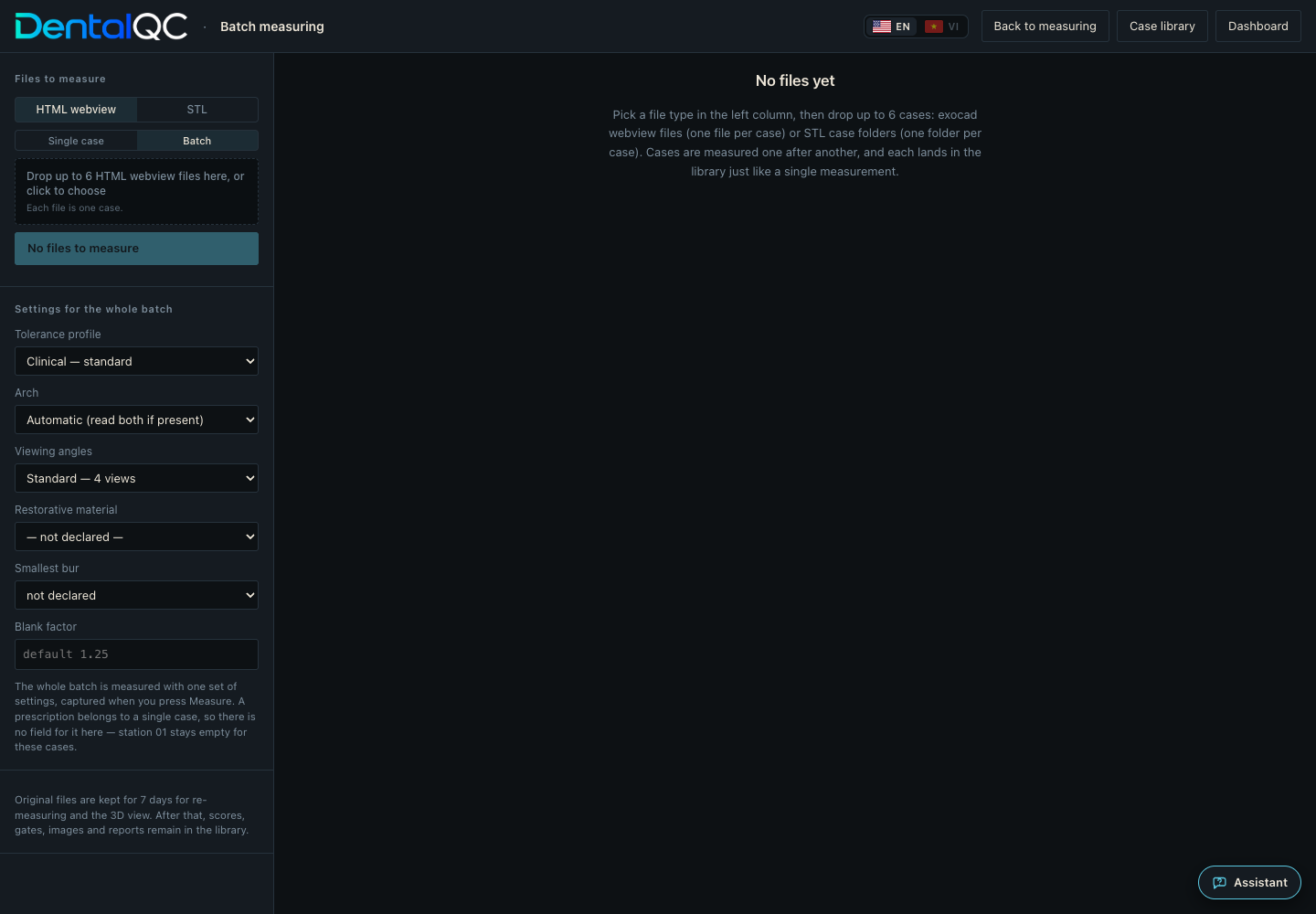
Top bar
- Back to measuring, Case library, Dashboard buttons; language flags.
Left rail › Files to measure
- Switches HTML webview / STL, and Single case (back to the single measuring page) / Batch (this page).
- HTML mode: drag up to 6 webview files onto the drop zone or click to choose — each file is one case.
- STL mode: drag up to 6 case folders, or click Choose folder / Choose loose files. Each folder is one case; a
.constructionInfoin the same folder is attached automatically; choosing a parent folder makes each subfolder a case; loose exocad files are split into cases by name. - The Measure N cases button starts the batch (it reads “No files to measure” while the list is empty).
- Stop after the current file: does not cancel the file being measured, only stops before the remaining ones.
- Clear list: removes the queued list from the screen.
- The app drops and reports: files beyond 6, duplicates, non-HTML files in HTML mode, files or cases over the server upload limit.
Left rail › Settings for the whole batch
- Tolerance profile, Arch, Viewing angles, Restorative material, Smallest bur, Blank factor — captured when you click Measure.
- No prescription box: a slip belongs to one case, so station 01 stays empty for these cases. To check a prescription, measure that case on the single measuring page.
- Original files are kept for 7 days for re-measuring and 3D; after that scores, gates, images and reports remain in the library.
Results table
- Columns: #, File (with HTML/STL type, number of STL files, “with constructionInfo”, teeth), Size, Status (Queued · Measuring · Done · Failed · Not measured), Score, Export gate, To fix, Time.
- Row buttons: Open case (case detail in the library, new tab), Report (A4 report), × Remove from batch (only before measuring and while the batch is not running).
- Summary line above the table: cases done · failed · not measured, and the average score (for reference only when cases were scored on different group sets).
- One failing file does not stop the batch. The batch stops by itself only when the session expires, the plan or quota runs out, or the server runs out of disk — the remaining files become “Not measured” with the reason; click Measure again to continue with the unfinished files.
- Leaving the page while the batch runs means the files not yet measured will not be measured (the browser asks first).